
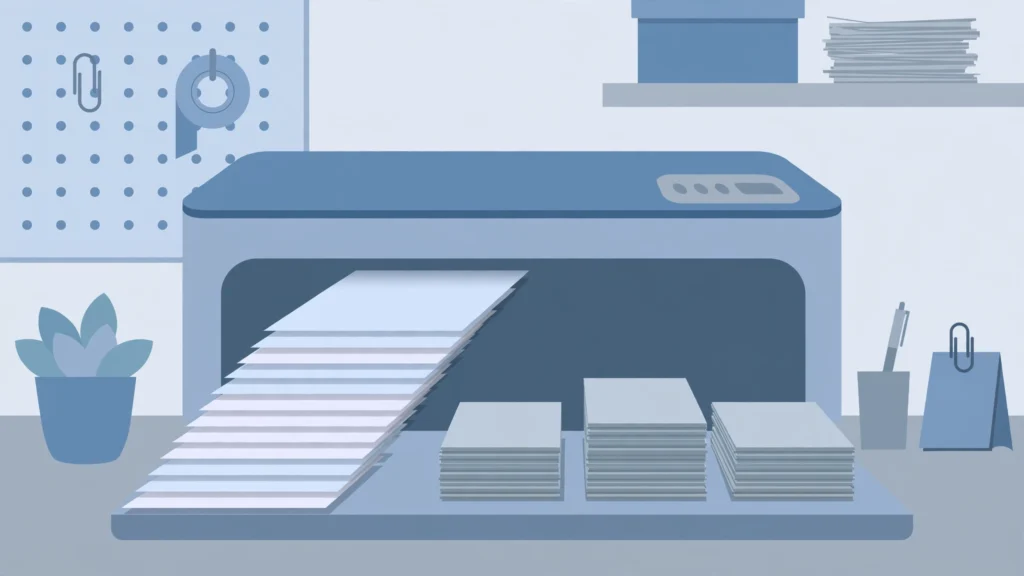

You hit Print on a 20-page report, asked for 10 copies — and the printer asks whether you want to collate. Most people click something and hope. But that one checkbox is the difference between 10 ready-to-hand-out reports and 200 pages of chaotic sorting you’ll be doing by hand for the next twenty minutes.
Collate simply means the printer assembles each copy as a complete set in page order: pages 1, 2, 3 — then 1, 2, 3 again — then 1, 2, 3 again. Without it (uncollated), you get all the page-1s, then all the page-2s, then all the page-3s — and the sorting becomes your problem.
This complete guide explains exactly what collate means when printing, collated vs. uncollated with clear examples, when to turn it on (and when to leave it off), how to enable it in Windows, Mac, Word, Excel, PDFs, and on copier panels and phones, how it combines with duplex and stapling, troubleshooting for when it doesn’t work, large-job tips, and FAQs.
What Does Collate Mean When Printing?
To collate when printing means to print multi-page documents so that each copy comes out as a complete set in sequential page order. The word comes from the Latin colligare — “to bind together” — which is exactly what it does: it binds your pages into finished sets as they print.
Picture a 3-page document, 3 copies requested:
| Page output order | What you get | |
|---|---|---|
| Collated | 1, 2, 3 → 1, 2, 3 → 1, 2, 3 | 3 complete sets, ready to distribute |
| Uncollated | 1, 1, 1 → 2, 2, 2 → 3, 3, 3 | 3 stacks (all page-1s, all page-2s, all page-3s) — you sort them yourself |
In the print dialog, collate usually appears as a checkbox near the Copies setting, often with a little icon showing “1,2,3 / 1,2,3” (collated) versus “1,1,1 / 2,2,2” (uncollated). Collating uses no extra ink or toner — the page count is identical; only the order changes.
Collated vs. Uncollated: Side by Side
| Collated | Uncollated | |
|---|---|---|
| Output | Complete sets: 1-2-3, 1-2-3, 1-2-3 | Page stacks: 1-1-1, 2-2-2, 3-3-3 |
| Best for | Reports, booklets, handouts, proposals — anything distributed as a set | Flyers, forms, single-page bulk jobs, pages needing separate processing |
| Your effort after printing | None — pick up and hand out | Manual sorting (or none needed if pages stay separate) |
| Speed | Slightly slower on some printers (must buffer the full job) | Marginally faster |
| Cost | Same | Same |
When to Use Collate (and When Not To)
The decision rule: if each recipient needs a complete set, collate. If pages will be used or distributed individually, don’t.
Collate: ON
- Reports and proposals — 10 copies of a 20-page report for a meeting
- Booklets and manuals — especially combined with stapling
- Class handouts and test papers — each student gets pages 1 through N
- Onboarding packets — new hires each need the full set
- Catalogs and brochures — multi-page, multi-copy by definition
Collate: OFF
- Single-page bulk jobs — 500 flyers, forms, or raffle tickets (collation is meaningless with one page)
- Pages distributed separately — page 1 goes to one team, page 2 to another
- Pages needing individual post-processing — trimming, manual binding, or laminating page by page
- Drafts — when you’re just checking layout and speed matters
- Mix-and-match assembly — when you’ll combine pages manually afterward anyway
Default advice: leave collate on as your default. For the overwhelming majority of multi-page, multi-copy jobs, it’s what you want — and forgetting it on a big job means hand-sorting hundreds of pages.
How to Collate When Printing: Every Platform
Windows print dialog
Press Ctrl+P → in the Copies section, check “Collate” (usually right under the number of copies). On some drivers it’s under Preferences → Finishing.
Mac print dialog
Press Cmd+P → the Collate checkbox typically sits next to Copies, or in the Layout dropdown within the print dialog. Check “Collated.”
Microsoft Word
File → Print → under Settings, open the dropdown that says “Uncollated” and switch it to “Collated” (shown with the 1,2,3 / 1,2,3 icon).
Microsoft Excel
Excel’s collation applies across multiple sheets: File → Print → Settings → Collated. This collates your selected sheets so each copy contains the full workbook sequence — handy for multi-tab financial reports. Note: Excel collates sheets, and page order within each sheet follows your print-area setup.
Adobe Acrobat / Reader (PDF)
File → Print → check “Collate” in the dialog. Important: Adobe has its own collation toggle that can override your printer driver’s setting — if output isn’t collating despite the driver saying otherwise, check Adobe’s checkbox too.
Chrome / browser PDF viewer
Ctrl/Cmd+P → More settings → look for the collation option under Copies. Browser print dialogs are simpler; if collate isn’t shown, use “Open PDF in preview/Adobe” for full control.
Copier / MFP panel
On the machine itself: Copy → Options → Collate/Sort (sometimes called “Sort”). High-volume copiers may offer sort bins — physical output trays that collect each collated set separately.
Printing from your phone
Mobile print dialogs (AirPrint, Mopria) often hide collation entirely or default it on. For multi-copy jobs from a phone, check the app’s print options carefully — or send the file to a desktop for important jobs.
Collate + Duplex + Staple: Finishing Combinations
Collation rarely works alone. Here’s how it interacts with other finishing options:
| Combination | What happens | Watch out for |
|---|---|---|
| Collate + staple | Each set stapled as a finished booklet — the classic meeting-handout setup | Stapling requires collation; uncollated + staple staples page stacks (wrong) |
| Collate + duplex (double-sided) | Each set printed front-and-back in order | Uncollated + duplex prints page 1 on front AND back — always collate with duplex |
| Collate + hole punch | Each set punched, ready for binders | Same dependency as stapling — collate first |
| Collate + slip sheets | Blank/colored sheet inserted between each collated set | Great for large jobs — sets stay visually separated |
| Booklet / saddle-stitch | Different from simple collation — pages are imposed (reordered) so folded sheets read correctly | Use the driver’s booklet mode, not manual collation |
Key principle: any finishing that treats “a copy” as a unit (stapling, punching, binding) depends on collation being on. If your stapled output looks wrong, check collate first.
Troubleshooting: When Collate Doesn’t Work
“Collate” is grayed out
- You selected 1 copy. There’s nothing to collate with a single copy — increase the copy count and the option activates.
- Driver limitation. Some basic drivers don’t support collation; update the driver from the manufacturer’s site.
- Single-page document. Collation is meaningless with one page; the option may disable itself.
Collate is checked but output is uncollated
- App override: Adobe Acrobat/Reader has its own collate toggle that can override the driver — check both.
- Driver “Mopier mode” / job storage: on HP LaserJets and similar, collation may depend on Mopier Mode being enabled in device settings (it lets the printer store the job and print collated copies from memory).
- Copier finisher in “Group” mode: on MFP panels, Group = uncollated stacks; switch to Sort (= collated).
- Spooler issues: try printing with “Print directly to printer” vs. spooled, or restart the print spooler service.
- Print as image: in Adobe’s advanced settings, “Print as image” can bypass collation logic — uncheck it.
Collation is extremely slow or fails on large jobs
See the printer-memory section below — this is almost always a buffering problem, not a settings problem.
Large Print Jobs & Printer Memory
Here’s why collation can strain printers: to output 1,2,3 / 1,2,3, the printer must hold the entire job in memory (or on disk) so it can reorder pages. Uncollated printing just streams pages straight through. On a 200-page document × 50 copies, that’s a massive buffer — and low-memory printers choke.
Workarounds for big collated jobs:
- Print in batches: 10 copies at a time instead of 50.
- Enable job storage / Mopier mode so the printer spools to its hard disk instead of RAM.
- Reduce job complexity: print at slightly lower resolution or simplify graphics-heavy pages.
- Use the copier, not the driver: MFPs with finishers and sort bins handle collation in hardware — far more reliable for volume.
- Add printer RAM if your model supports it — the old-school fix that still works.
- Outsource truly huge jobs: print shops collate and staple thousands of sets in a single pass on equipment built for it — often cheaper than your time + toner.
Office Best Practices
- Set collate ON as the fleet default. Most print-management software lets admins push this; it prevents the most common large-job disaster.
- Train the “copies vs. collation” distinction. New staff constantly confuse “number of copies” with collation — they’re separate settings, and both matter.
- Use the copier’s sort bins for volume. Driver collation works, but hardware sorters on MFPs are faster and more reliable for 20+ copy jobs.
- Proof one collated copy first. Before launching 100 copies, print one, check order + finishing, then scale up.
- For outsourced printing, specify “collated” explicitly in the order — and confirm whether finishing (staple/bind) is included or separate.
A Brief History: From Hand-Sorting to One Click
Before automatic collators, “collating” was literal manual labor: print-shop workers stood around large tables, walking stacks of pages and assembling sets by hand — a job title (“collator”) as well as a task. The first automatic collating machines appeared in the mid-20th century, using rotating bins to mechanize what hands had done.
The word itself comes from Latin colligere (via colligare, “to bind together”) — to gather and compare, which is also why editors “collate” manuscripts and scholars “collate” texts. When you check that little box in a print dialog, you’re invoking a concept older than printing itself: gathering scattered pieces into their proper order.
Note: this article covers “collate” in the printing sense. The general dictionary meaning — to collect, compare, and arrange information — is a broader topic we’ll cover separately.
Collate in Microsoft Office: App-by-App Details
Word
Word has the clearest collation UI of any app: File → Print → Settings → the Collated/Uncollated dropdown with its 1,2,3 icons. It also respects page ranges: if you print “pages 3–8, 5 copies, collated,” each set contains pages 3–8 in order. One gotcha — Word’s “Print on Both Sides” (duplex) setting lives in the same panel; enable both together for finished booklets.
Excel
Excel collates sheets, not just pages. With multiple sheets selected: File → Print → Settings → Collated. Each copy runs through Sheet1, Sheet2, Sheet3 in sequence. Within a sheet, page order follows your Page Setup (over-then-down vs. down-then-over) — check Page Layout → Page Setup → Sheet → Page order if multi-page sheets sequence oddly.
PowerPoint
File → Print → check Collate under Copies. PowerPoint adds a wrinkle: handout layouts (multiple slides per page). Collation applies to the printed handout pages — 3 copies of a 6-slide handout (2 slides/page = 3 pages) collates as 3 complete handout sets. Verify with Print Preview before large runs.
Google Docs / Slides / Sheets
Google’s print dialog (Ctrl/Cmd+P) is minimal: set copies, then look for collation under the destination printer’s More settings. If it’s absent, use “Open PDF in Preview” (or download and print from Adobe) for full control. Google Docs prints through the browser pipeline, so driver-level features vary.
Collate vs. Sort vs. Group: Copier Terminology
On copier/MFP panels, the same concept wears different names:
- Sort = collated (each set in order). This is the term most office copiers use.
- Group = uncollated (page stacks: all page-1s together).
- Collate = the printer-driver term for Sort.
So “Sort ON” on the copier and “Collate checked” in the driver mean the same thing. Confusion between these labels causes a surprising number of misprinted jobs — when in doubt, run a 2-copy test.
Collating Booklets: Imposition Explained Simply
True booklets need more than collation — they need imposition: reordering pages so that when sheets are folded and stapled (saddle-stitch), everything reads correctly. An 8-page booklet prints as: sheet 1 = pages 8,1 / 2,7; sheet 2 = pages 6,3 / 4,5.
- Don’t impose manually. Use the driver’s Booklet mode (often under Finishing or Layout) — it handles imposition, duplex, and saddle-stitch as one job.
- Page counts must divide by 4 for saddle-stitch; the driver adds blanks automatically if needed.
- Collation still matters: booklet mode collates sheets so each booklet copy is complete.
5 Common Collating Scenarios — Solved
- Meeting handouts (10 copies, 12 pages): Collate ON + staple. Each attendee gets a finished packet. Proof one copy first.
- 500 event flyers (1 page): Collate irrelevant — leave off, print straight through.
- Double-sided worksheets (30 copies, 4 pages): Collate ON + duplex ON. Verify the first set: page 1 front / page 2 back, etc.
- Exam papers with separate answer sheets: Print exams collated; print answer sheets as a separate uncollated job. Don’t mix them in one run.
- Training manuals to be 3-hole punched: Collate ON + hole punch finishing. Sets come out punched and binder-ready.
Does Collating Affect Quality or Jams?
- Print quality: no effect whatsoever — same pages, same rendering, different order.
- Paper jams: collation itself doesn’t cause jams, but large collated jobs keep the printer running continuously at full memory load — if your printer jams on big jobs, batch them smaller regardless of collation.
- Toner/ink: identical consumption. Anyone telling you collating “uses more ink” is mistaken.
- Wear: no meaningful difference in printer wear.
Frequently Asked Questions
What does collate mean on a printer?
It means the printer assembles each copy as a complete set in page order (1,2,3 / 1,2,3) instead of printing all page-1s, then all page-2s (1,1,1 / 2,2,2). Use it whenever each recipient needs a full multi-page set.
Should collate be on or off?
On for multi-page documents printed in multiple copies (reports, handouts, booklets). Off for single-page bulk jobs (flyers, forms) or when pages will be distributed individually. When in doubt, leave it on.
What’s the difference between collated and uncollated?
Collated = complete sequential sets (1,2,3 / 1,2,3). Uncollated = grouped page stacks (1,1,1 / 2,2,2) that you must sort by hand. Same pages, same ink — only the order differs.
Does collating take longer or cost more?
It can be slightly slower on large jobs (the printer must buffer the full job to reorder pages), but it costs the same — identical page count, identical ink/toner. The time you save not hand-sorting dwarfs any print-speed difference.
Why is the collate option grayed out?
Almost always because only 1 copy is selected — there’s nothing to collate. Increase the copy count. If it persists with multiple copies, update your printer driver or check whether the application (e.g., Adobe) is overriding the setting.
Conclusion
Collate is one of those settings that’s invisible when it’s right and catastrophic when it’s wrong. The rule is simple: complete sets → collate on; page stacks → collate off. For the vast majority of office and school printing — reports, handouts, packets — on is the answer.
Now you also know the deeper mechanics: why it needs printer memory, why it must pair with duplex and stapling, and how to fix it when the checkbox seems to do nothing. The next time that dialog pops up, you’ll click with confidence — and never hand-sort 200 pages again.